Designing an Immersive Menu for AR/VR:
a Learning Journey between Ambition and
Humility.
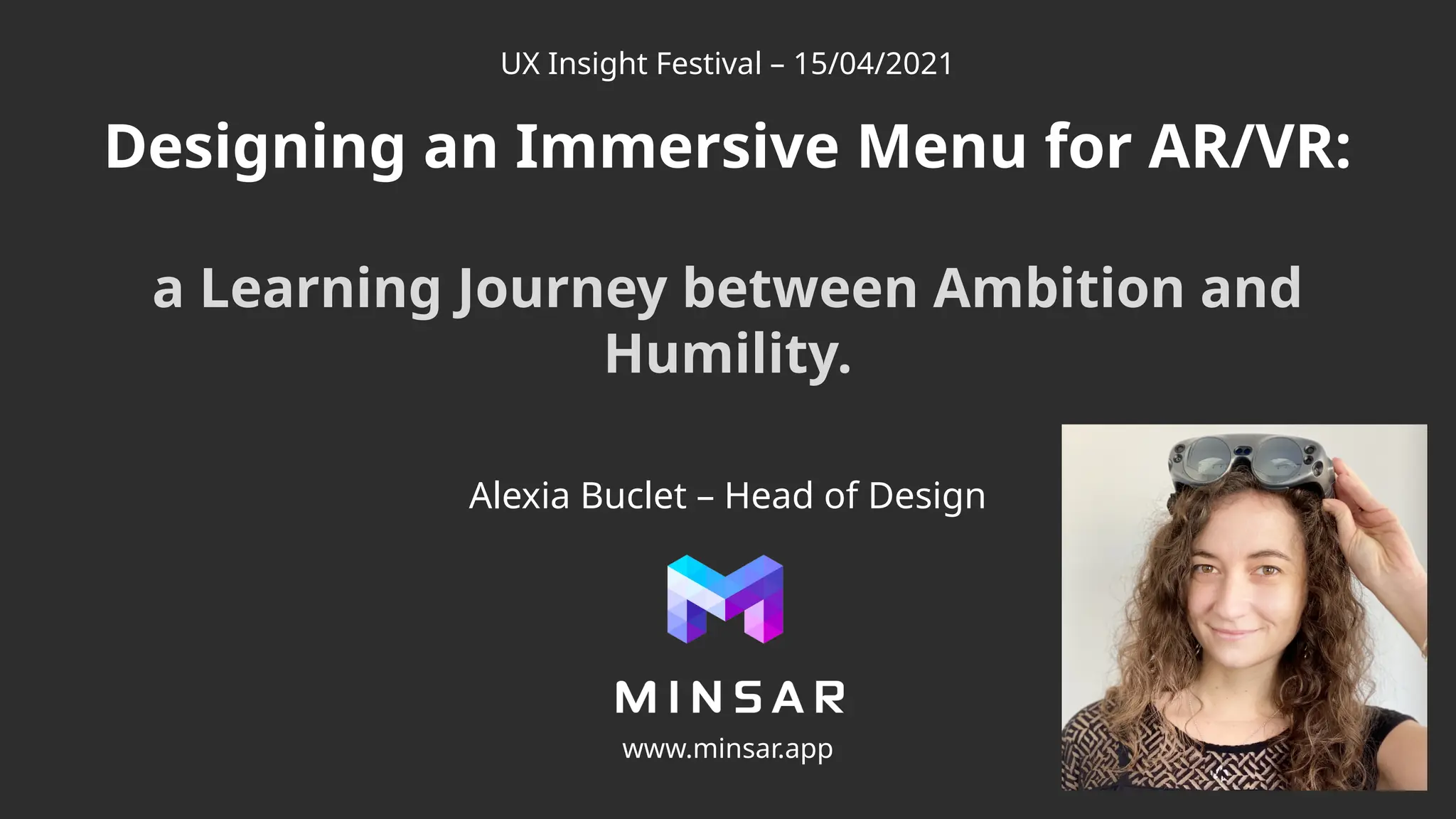
Alexia Buclet – Head of Design
www.minsar.app
UX Insight Festival – 15/04/2021
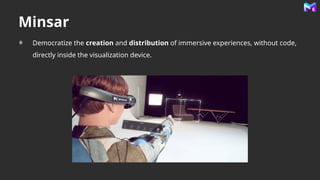
Minsar
Democratize the creation and distribution of immersive experiences, without code,
directly inside the visualization device.
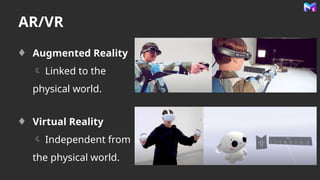
AR/VR
Augmented Reality
 Linked to the
physical world.
Virtual Reality
 Independent from
the physical world.
Click icon to add picture
Different challenges in VR/AR
Among many others…
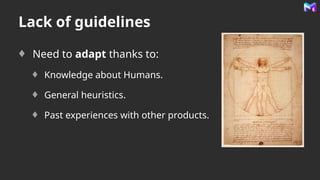
Lack of guidelines
Need to adapt thanks to:
Knowledge about Humans.
General heuristics.
Past experiences with other products.
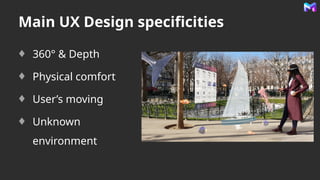
Main UX Design specificities
360° & Depth
Physical comfort
User’s moving
Unknown
environment
No standard device
Nobody uses the same type of device.
Each device has its own:
Technological constraints
Capabilities
Interaction features
Limited knowledge on the users’ habits.
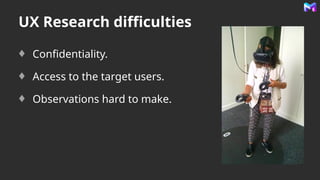
UX Research difficulties
Confidentiality.
Access to the target users.
Observations hard to make.
Click icon to add picture
5 main iterations/pivots
Through more than 4 years of menu designing on
several devices…
2016 2017 2018 2019 2020
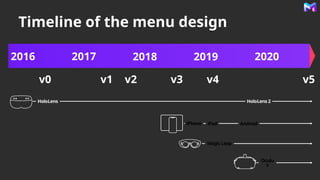
Timeline of the menu design
2016 2017 2018 2019 2020
v0 v1 v2 v3
HoloLens HoloLens 2
Magic Leap
iPhone iPad Android
Oculu
s
v4 v5
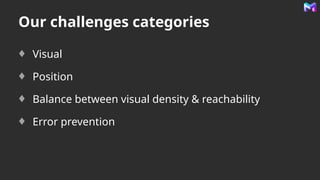
Our challenges categories
Visual
Position
Balance between visual density & reachability
Error prevention
Click icon to add picture
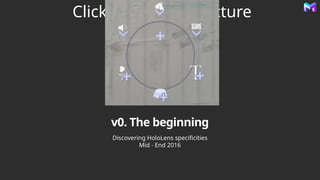
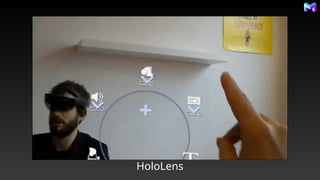
v0. The beginning
Discovering HoloLens specificities
Mid - End 2016
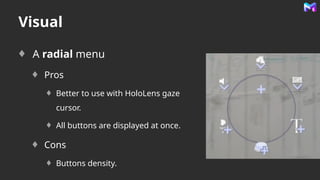
Visual
A radial menu
Pros
Better to use with HoloLens gaze
cursor.
All buttons are displayed at once.
Cons
Buttons density.
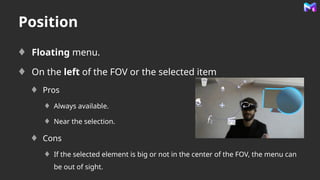
Position
Floating menu.
On the left of the FOV or the selected item
Pros
Always available.
Near the selection.
Cons
If the selected element is big or not in the center of the FOV, the menu can
be out of sight.
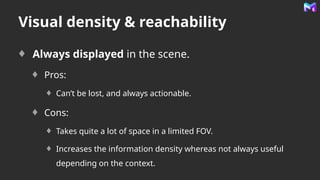
Visual density & reachability
Always displayed in the scene.
Pros:
Can’t be lost, and always actionable.
Cons:
Takes quite a lot of space in a limited FOV.
Increases the information density whereas not always useful
depending on the context.
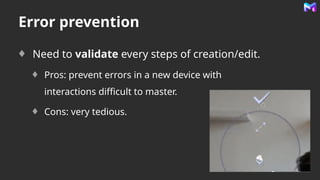
Error prevention
Need to validate every steps of creation/edit.
Pros: prevent errors in a new device with
interactions difficult to master.
Cons: very tedious.
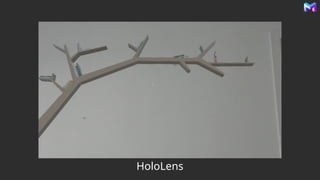
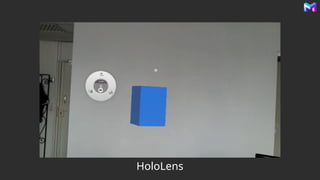
HoloLens
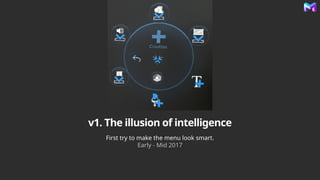
v1. The illusion of intelligence
First try to make the menu look smart.
Early - Mid 2017
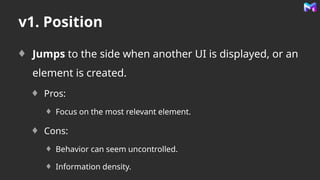
v1. Position
Jumps to the side when another UI is displayed, or an
element is created.
Pros:
Focus on the most relevant element.
Cons:
Behavior can seem uncontrolled.
Information density.
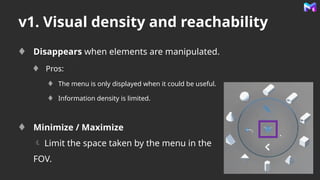
v1. Visual density and reachability
Disappears when elements are manipulated.
Pros:
The menu is only displayed when it could be useful.
Information density is limited.
Minimize / Maximize
 Limit the space taken by the menu in the
FOV.
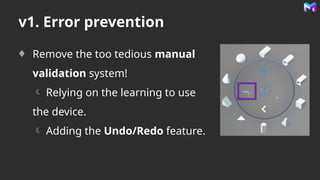
v1. Error prevention
Remove the too tedious manual
validation system!
 Relying on the learning to use
the device.
 Adding the Undo/Redo feature.
HoloLens
Click icon to add picture
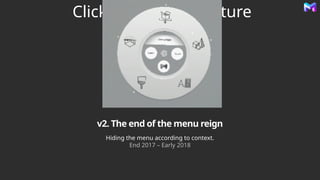
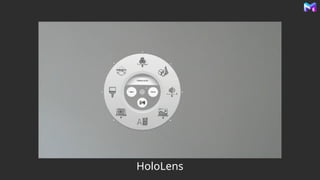
v2. The end of the menu reign
Hiding the menu according to context.
End 2017 – Early 2018
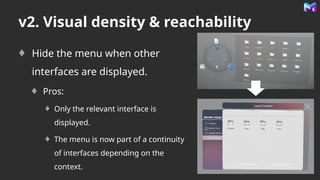
v2. Visual density & reachability
Hide the menu when other
interfaces are displayed.
Pros:
Only the relevant interface is
displayed.
The menu is now part of a continuity
of interfaces depending on the
context.
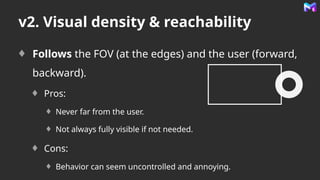
v2. Visual density & reachability
Follows the FOV (at the edges) and the user (forward,
backward).
Pros:
Never far from the user.
Not always fully visible if not needed.
Cons:
Behavior can seem uncontrolled and annoying.
HoloLens
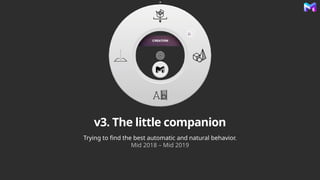
v3. The little companion
Trying to find the best automatic and natural behavior.
Mid 2018 – Mid 2019
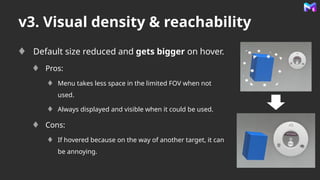
v3. Visual density & reachability
Default size reduced and gets bigger on hover.
Pros:
Menu takes less space in the limited FOV when not
used.
Always displayed and visible when it could be used.
Cons:
If hovered because on the way of another target, it can
be annoying.
HoloLens
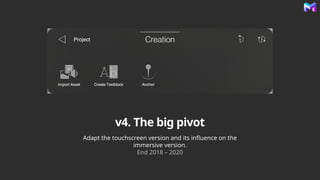
v4. The big pivot
Adapt the touchscreen version and its influence on the
immersive version.
End 2018 – 2020
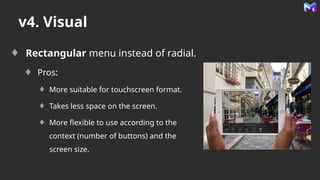
v4. Visual
Rectangular menu instead of radial.
Pros:
More suitable for touchscreen format.
Takes less space on the screen.
More flexible to use according to the
context (number of buttons) and the
screen size.
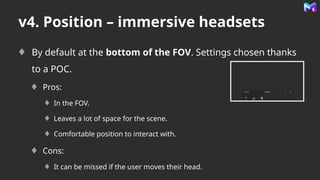
v4. Position – immersive headsets
By default at the bottom of the FOV. Settings chosen thanks
to a POC.
Pros:
In the FOV.
Leaves a lot of space for the scene.
Comfortable position to interact with.
Cons:
It can be missed if the user moves their head.
v4. Position
Fail of the automatic positioning  Manually reinitializes
the position with a dedicated button / gesture.
Pros:
No more inopportune / annoying automatic positioning.
Control given to the user.
Cons:
The user can lose their menu when they don’t know the feature.
 Contextual tutorial at launch.
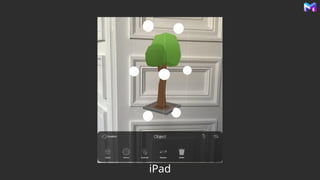
iPad
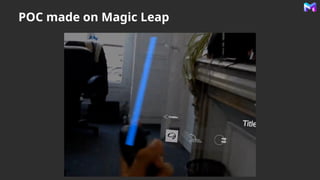
POC made on Magic Leap
Click icon to add picture
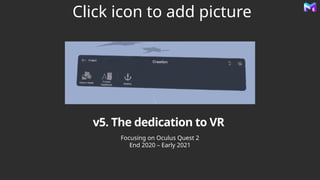
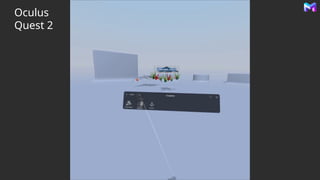
v5. The dedication to VR
Focusing on Oculus Quest 2
End 2020 – Early 2021
v5. Position / visual density and
reachability
The user can drag and drop the menu.
Pros: better control on the menu position.
Oculus
Quest 2
Menu design iterations origins
Main desire: Innovate while being adapted to our users’
target.
Major changes were driven by:
Feedback on the UX made by users, and the team.
The acceptance of our limits.
Adaptation to the different devices and the evolution of their
capabilities.
Key learnings
When working in emerging technologies:
1.Don’t be afraid to make mistakes.
2.Be ambitious, yet humble.
3.Always focus on the users.
Thank you &
feel free to reach me/us!
@AlexiaBuclet
www.minsar.app

Designing an Immersive Menu for Augmented & Virtual Reality

  • 1.
    Designing an ImmersiveMenu for AR/VR: a Learning Journey between Ambition and Humility. Alexia Buclet – Head of Design www.minsar.app UX Insight Festival – 15/04/2021
  • 2.
    Minsar Democratize the creationand distribution of immersive experiences, without code, directly inside the visualization device.
  • 3.
    AR/VR Augmented Reality  Linkedto the physical world. Virtual Reality  Independent from the physical world.
  • 4.
    Click icon toadd picture Different challenges in VR/AR Among many others…
  • 5.
    Lack of guidelines Needto adapt thanks to: Knowledge about Humans. General heuristics. Past experiences with other products.
  • 6.
    Main UX Designspecificities 360° & Depth Physical comfort User’s moving Unknown environment
  • 7.
    No standard device Nobodyuses the same type of device. Each device has its own: Technological constraints Capabilities Interaction features Limited knowledge on the users’ habits.
  • 8.
    UX Research difficulties Confidentiality. Accessto the target users. Observations hard to make.
  • 9.
    Click icon toadd picture 5 main iterations/pivots Through more than 4 years of menu designing on several devices… 2016 2017 2018 2019 2020
  • 10.
    Timeline of themenu design 2016 2017 2018 2019 2020 v0 v1 v2 v3 HoloLens HoloLens 2 Magic Leap iPhone iPad Android Oculu s v4 v5
  • 11.
    Our challenges categories Visual Position Balancebetween visual density & reachability Error prevention
  • 12.
    Click icon toadd picture v0. The beginning Discovering HoloLens specificities Mid - End 2016
  • 13.
    Visual A radial menu Pros Betterto use with HoloLens gaze cursor. All buttons are displayed at once. Cons Buttons density.
  • 14.
    Position Floating menu. On theleft of the FOV or the selected item Pros Always available. Near the selection. Cons If the selected element is big or not in the center of the FOV, the menu can be out of sight.
  • 15.
    Visual density &reachability Always displayed in the scene. Pros: Can’t be lost, and always actionable. Cons: Takes quite a lot of space in a limited FOV. Increases the information density whereas not always useful depending on the context.
  • 16.
    Error prevention Need tovalidate every steps of creation/edit. Pros: prevent errors in a new device with interactions difficult to master. Cons: very tedious.
  • 17.
  • 18.
    v1. The illusionof intelligence First try to make the menu look smart. Early - Mid 2017
  • 19.
    v1. Position Jumps tothe side when another UI is displayed, or an element is created. Pros: Focus on the most relevant element. Cons: Behavior can seem uncontrolled. Information density.
  • 20.
    v1. Visual densityand reachability Disappears when elements are manipulated. Pros: The menu is only displayed when it could be useful. Information density is limited. Minimize / Maximize  Limit the space taken by the menu in the FOV.
  • 21.
    v1. Error prevention Removethe too tedious manual validation system!  Relying on the learning to use the device.  Adding the Undo/Redo feature.
  • 22.
  • 23.
    Click icon toadd picture v2. The end of the menu reign Hiding the menu according to context. End 2017 – Early 2018
  • 24.
    v2. Visual density& reachability Hide the menu when other interfaces are displayed. Pros: Only the relevant interface is displayed. The menu is now part of a continuity of interfaces depending on the context.
  • 25.
    v2. Visual density& reachability Follows the FOV (at the edges) and the user (forward, backward). Pros: Never far from the user. Not always fully visible if not needed. Cons: Behavior can seem uncontrolled and annoying.
  • 26.
  • 27.
    v3. The littlecompanion Trying to find the best automatic and natural behavior. Mid 2018 – Mid 2019
  • 28.
    v3. Visual density& reachability Default size reduced and gets bigger on hover. Pros: Menu takes less space in the limited FOV when not used. Always displayed and visible when it could be used. Cons: If hovered because on the way of another target, it can be annoying.
  • 29.
  • 30.
    v4. The bigpivot Adapt the touchscreen version and its influence on the immersive version. End 2018 – 2020
  • 31.
    v4. Visual Rectangular menuinstead of radial. Pros: More suitable for touchscreen format. Takes less space on the screen. More flexible to use according to the context (number of buttons) and the screen size.
  • 32.
    v4. Position –immersive headsets By default at the bottom of the FOV. Settings chosen thanks to a POC. Pros: In the FOV. Leaves a lot of space for the scene. Comfortable position to interact with. Cons: It can be missed if the user moves their head.
  • 33.
    v4. Position Fail ofthe automatic positioning  Manually reinitializes the position with a dedicated button / gesture. Pros: No more inopportune / annoying automatic positioning. Control given to the user. Cons: The user can lose their menu when they don’t know the feature.  Contextual tutorial at launch.
  • 34.
  • 35.
    POC made onMagic Leap
  • 36.
    Click icon toadd picture v5. The dedication to VR Focusing on Oculus Quest 2 End 2020 – Early 2021
  • 37.
    v5. Position /visual density and reachability The user can drag and drop the menu. Pros: better control on the menu position.
  • 38.
  • 39.
    Menu design iterationsorigins Main desire: Innovate while being adapted to our users’ target. Major changes were driven by: Feedback on the UX made by users, and the team. The acceptance of our limits. Adaptation to the different devices and the evolution of their capabilities.
  • 40.
    Key learnings When workingin emerging technologies: 1.Don’t be afraid to make mistakes. 2.Be ambitious, yet humble. 3.Always focus on the users.
  • 41.
    Thank you & feelfree to reach me/us! @AlexiaBuclet www.minsar.app