Développement OS Bada
                                            Premier programme
                                              Auteur : Ph. Lacomme


1. Installer le
Etape 1.1. Inscription.

Utiliser le lien : http://www.bada.com/


                                                                     1
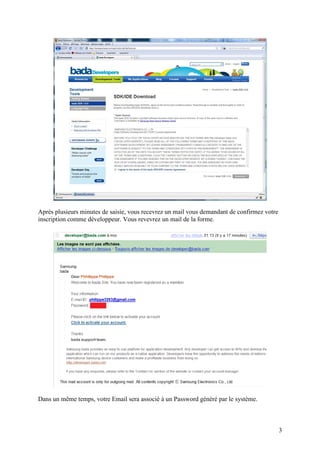
Choisisser le bouton DownloadNow.

Ce qui vous donne accès à la page suivante :


Pour accéder aux ressources, vous devrez remplir les formulaires d’enregistrement et accepter
les différents contrats utilisateur.


                                                                                            2
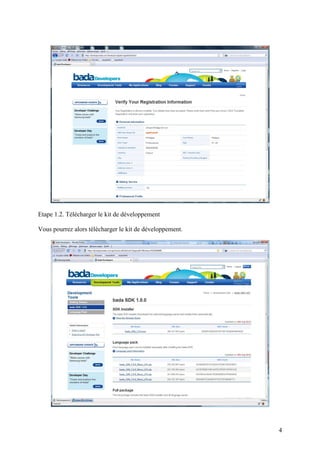
Après plusieurs minutes de saisie, vous recevrez un mail vous demandant de confirmez votre
inscription comme développeur. Vous revevrez un mail de la forme.


Dans un même temps, votre Email sera associé à un Password généré par le système.


                                                                                             3
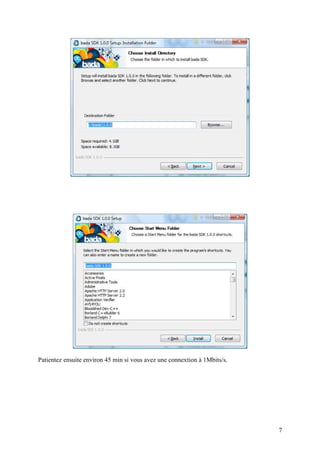
Etape 1.2. Télécharger le kit de développement

Vous pourrez alors télécharger le kit de développement.


                                                          4
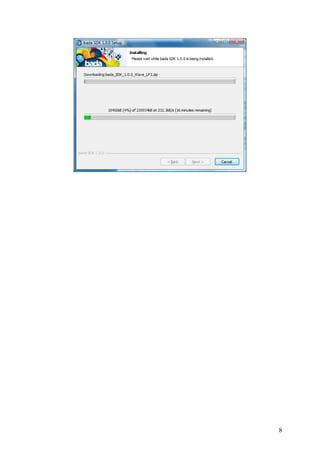
Vous obtiendrer un exécutable se présentant comme suit :


Lancez l’installation.


                                                           5
6
Patientez ensuite environ 45 min si vous avez une connextion à 1Mbits/s.


                                                                           7
8
2. Créer un projet.
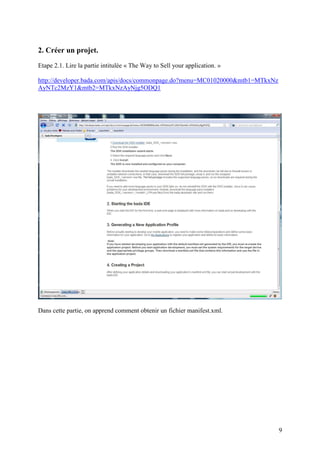
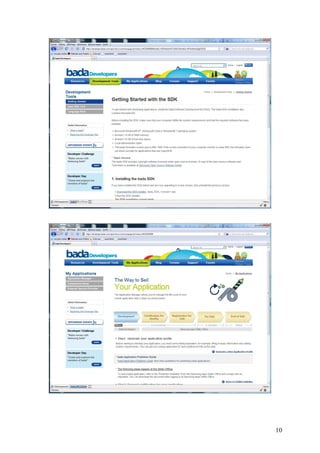
Etape 2.1. Lire la partie intitulée « The Way to Sell your application. »

http://developer.bada.com/apis/docs/commonpage.do?menu=MC01020000&mtb1=MTkxNz
AyNTc2MzY1&mtb2=MTkxNzAyNjg5ODQ1


Dans cette partie, on apprend comment obtenir un fichier manifest.xml.


                                                                                9
10
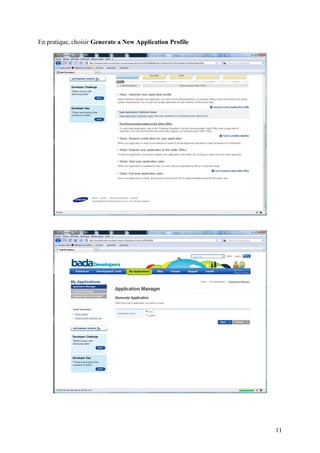
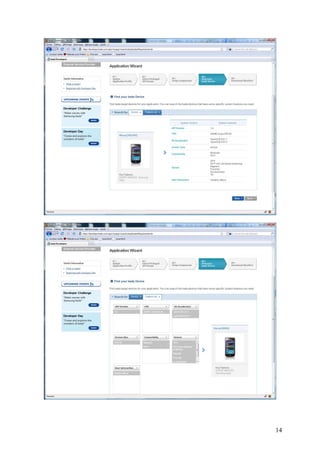
En pratique, choisir Generate a New Application Profile


                                                          11
12
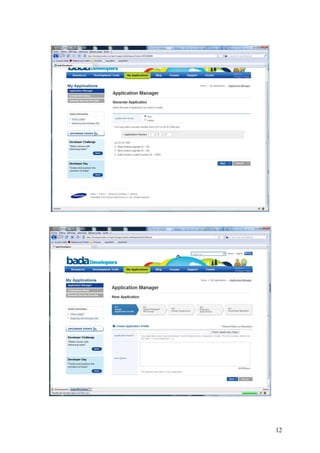
Choisir comme nom : EssaiApp.


                                13
14
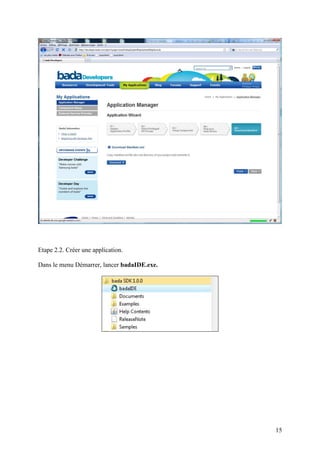
Etape 2.2. Créer une application.

Dans le menu Démarrer, lancer badaIDE.exe.


                                             15
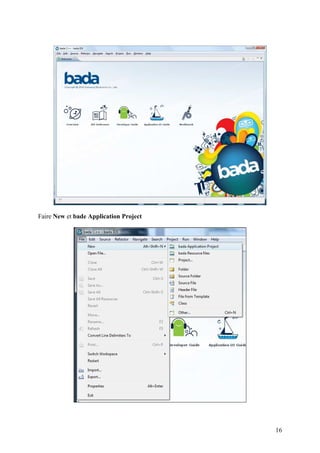
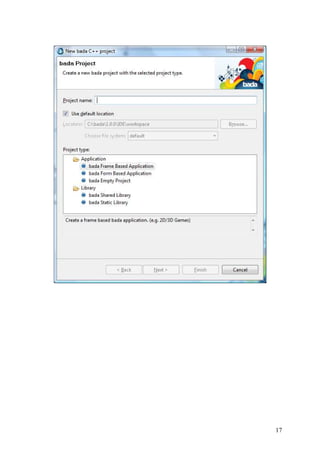
Faire New et bade Application Project


                                        16
17
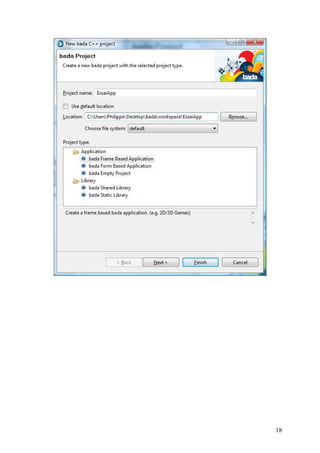
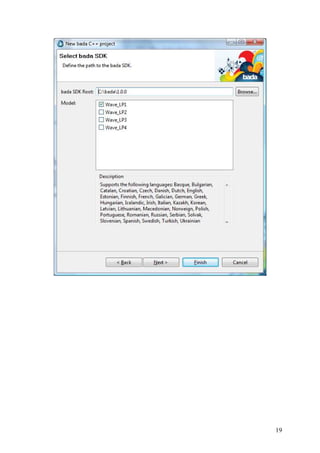
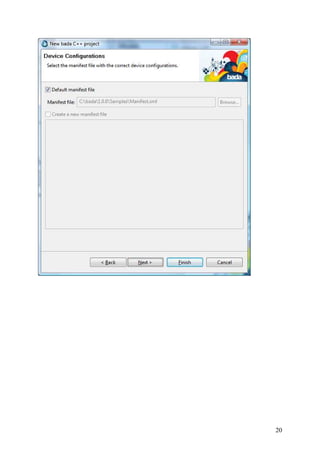
18
19
20
21
22
23
Faire Project / Build All et ensuite exécuter.

Vous devriez obtenir ceci au premier démarrage de l’émulateur :


                                                                  24
Et finalement


Etape 2.3. Créer une application plus évoluée


Faire un click droit sur Res et ajouter un bada Ressource File.


                                                                  25
26
A l’aide du GUI, créez votre propore interfacce :


                                                    27
28
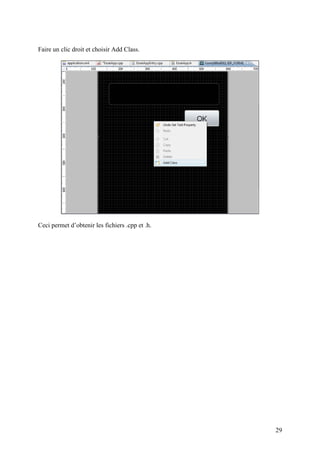
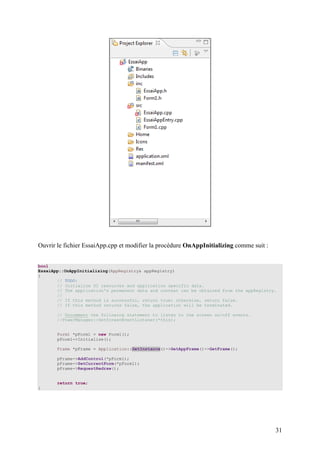
Faire un clic droit et choisir Add Class.


Ceci permet d’obtenir les fichiers .cpp et .h.


                                                 29
30
Ouvrir le fichier EssaiApp.cpp et modifier la procédure OnAppInitializing comme suit :


bool
EssaiApp::OnAppInitializing(AppRegistry& appRegistry)
{
       // TODO:
       // Initialize UI resources and application specific data.
       // The application's permanent data and context can be obtained from the appRegistry.
       //
       // If this method is successful, return true; otherwise, return false.
       // If this method returns false, the application will be terminated.

       // Uncomment the following statement to listen to the screen on/off events.
       //PowerManager::SetScreenEventListener(*this);


       Form1 *pForm1 = new Form1();
       pForm1->Initialize();

       Frame *pFrame = Application::GetInstance()->GetAppFrame()->GetFrame();

       pFrame->AddControl(*pForm1);
       pFrame->SetCurrentForm(*pForm1);
       pFrame->RequestRedraw();


       return true;
}


                                                                                           31
Le debut du programme doit comporter un using namespace sur Controls comme ceci :


using   namespace   Osp::App;
using   namespace   Osp::Base;
using   namespace   Osp::System;
using   namespace   Osp::Graphics;
using   namespace   Osp::Ui::Controls;

A l’exécution, on obtient:


Etape 2.4. Modifier l’interface en ajoutant deux zones d’affichage


                                                                                    32
Modifier le fichier Form1.h comme suit :

class Form1 :
       public Osp::Ui::Controls::Form
,      public Osp::Ui::IActionEventListener
{

// Construction
public:
       Form1(void);
       virtual ~Form1(void);
       bool Initialize();
       result OnInitializing(void);
       result OnTerminating(void);

       Button *bouton;
       EditArea *contextArea;
       EditArea *contextArea2;

// Implementation
protected:

// Generated call-back functions
public:

       void OnActionPerformed(const Osp::Ui::Control&, int);
};


Ouvrir le fichier Form1.cpp et modifier le début du fichier :

static const int BUTTON_ACTION_GREET = 1;


Ouvrir le fichier Form1.cpp et modifier la méthode OnInitializing.

result
Form1::OnInitializing(void)
{
       result r = E_SUCCESS;

       // TODO: Add your initialization code here


       bouton = static_cast<Button*>(GetControl(L"IDC_BUTTON1"));

       bouton->SetActionId(BUTTON_ACTION_GREET);

       bouton->AddActionEventListener(*this);


       return r;
}


                                                                     33
Ouvrir le fichier Form1.cpp et modifier la méthode OnActionPerformed.

void
Form1::OnActionPerformed(const Control& source, int actionId)
{
       // TODO: Add your implementation codes here


       switch (actionId) {

               case BUTTON_ACTION_GREET :

               contextArea = static_cast<EditArea*>(GetControl(L"IDC_EDITAREA1"));

               contextArea->AddActionEventListener(*this);

               contextArea->AppendText("bonjour");

               contextArea2 = static_cast<EditArea*>(GetControl(L"IDC_EDITAREA2"));

               contextArea2->AddActionEventListener(*this);

               contextArea2->AppendText("Philippe");

               contextArea->RequestRedraw();
               contextArea2->RequestRedraw();

               break;

               default:
                 break;
               }

}


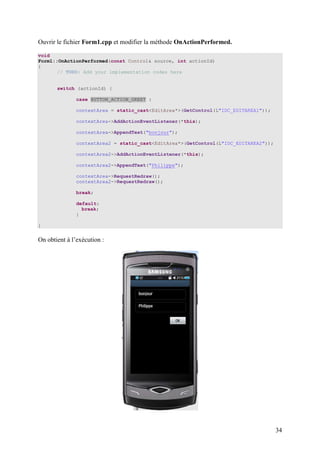
On obtient à l’exécution :


                                                                                      34
Etape 2.5. Géolocaliser un téléphone


Il vous faudra utiliser les namespaces suivant :

using namespace Osp::Locations;
using namespace Osp::Locations::Controls;
using namespace Osp::Locations::Services;;


Bada propose des facilités pour la conversion des entiers en string, des réels en string. Voici
un exemple :

Float floatNumber;
String yourString;
floatNumber = 12.23;
yourString = floatNumber.ToString();


                              -------------------- FIN ---------------


                                                                                                  35

Tuto bada

  • 1.
    Développement OS Bada Premier programme Auteur : Ph. Lacomme 1. Installer le Etape 1.1. Inscription. Utiliser le lien : http://www.bada.com/ 1
  • 2.
    Choisisser le boutonDownloadNow. Ce qui vous donne accès à la page suivante : Pour accéder aux ressources, vous devrez remplir les formulaires d’enregistrement et accepter les différents contrats utilisateur. 2
  • 3.
    Après plusieurs minutesde saisie, vous recevrez un mail vous demandant de confirmez votre inscription comme développeur. Vous revevrez un mail de la forme. Dans un même temps, votre Email sera associé à un Password généré par le système. 3
  • 4.
    Etape 1.2. Téléchargerle kit de développement Vous pourrez alors télécharger le kit de développement. 4
  • 5.
    Vous obtiendrer unexécutable se présentant comme suit : Lancez l’installation. 5
  • 6.
  • 7.
    Patientez ensuite environ45 min si vous avez une connextion à 1Mbits/s. 7
  • 8.
  • 9.
    2. Créer unprojet. Etape 2.1. Lire la partie intitulée « The Way to Sell your application. » http://developer.bada.com/apis/docs/commonpage.do?menu=MC01020000&mtb1=MTkxNz AyNTc2MzY1&mtb2=MTkxNzAyNjg5ODQ1 Dans cette partie, on apprend comment obtenir un fichier manifest.xml. 9
  • 10.
  • 11.
    En pratique, choisirGenerate a New Application Profile 11
  • 12.
  • 13.
    Choisir comme nom: EssaiApp. 13
  • 14.
  • 15.
    Etape 2.2. Créerune application. Dans le menu Démarrer, lancer badaIDE.exe. 15
  • 16.
    Faire New etbade Application Project 16
  • 17.
  • 18.
  • 19.
  • 20.
  • 21.
  • 22.
  • 23.
  • 24.
    Faire Project /Build All et ensuite exécuter. Vous devriez obtenir ceci au premier démarrage de l’émulateur : 24
  • 25.
    Et finalement Etape 2.3.Créer une application plus évoluée Faire un click droit sur Res et ajouter un bada Ressource File. 25
  • 26.
  • 27.
    A l’aide duGUI, créez votre propore interfacce : 27
  • 28.
  • 29.
    Faire un clicdroit et choisir Add Class. Ceci permet d’obtenir les fichiers .cpp et .h. 29
  • 30.
  • 31.
    Ouvrir le fichierEssaiApp.cpp et modifier la procédure OnAppInitializing comme suit : bool EssaiApp::OnAppInitializing(AppRegistry& appRegistry) { // TODO: // Initialize UI resources and application specific data. // The application's permanent data and context can be obtained from the appRegistry. // // If this method is successful, return true; otherwise, return false. // If this method returns false, the application will be terminated. // Uncomment the following statement to listen to the screen on/off events. //PowerManager::SetScreenEventListener(*this); Form1 *pForm1 = new Form1(); pForm1->Initialize(); Frame *pFrame = Application::GetInstance()->GetAppFrame()->GetFrame(); pFrame->AddControl(*pForm1); pFrame->SetCurrentForm(*pForm1); pFrame->RequestRedraw(); return true; } 31
  • 32.
    Le debut duprogramme doit comporter un using namespace sur Controls comme ceci : using namespace Osp::App; using namespace Osp::Base; using namespace Osp::System; using namespace Osp::Graphics; using namespace Osp::Ui::Controls; A l’exécution, on obtient: Etape 2.4. Modifier l’interface en ajoutant deux zones d’affichage 32
  • 33.
    Modifier le fichierForm1.h comme suit : class Form1 : public Osp::Ui::Controls::Form , public Osp::Ui::IActionEventListener { // Construction public: Form1(void); virtual ~Form1(void); bool Initialize(); result OnInitializing(void); result OnTerminating(void); Button *bouton; EditArea *contextArea; EditArea *contextArea2; // Implementation protected: // Generated call-back functions public: void OnActionPerformed(const Osp::Ui::Control&, int); }; Ouvrir le fichier Form1.cpp et modifier le début du fichier : static const int BUTTON_ACTION_GREET = 1; Ouvrir le fichier Form1.cpp et modifier la méthode OnInitializing. result Form1::OnInitializing(void) { result r = E_SUCCESS; // TODO: Add your initialization code here bouton = static_cast<Button*>(GetControl(L"IDC_BUTTON1")); bouton->SetActionId(BUTTON_ACTION_GREET); bouton->AddActionEventListener(*this); return r; } 33
  • 34.
    Ouvrir le fichierForm1.cpp et modifier la méthode OnActionPerformed. void Form1::OnActionPerformed(const Control& source, int actionId) { // TODO: Add your implementation codes here switch (actionId) { case BUTTON_ACTION_GREET : contextArea = static_cast<EditArea*>(GetControl(L"IDC_EDITAREA1")); contextArea->AddActionEventListener(*this); contextArea->AppendText("bonjour"); contextArea2 = static_cast<EditArea*>(GetControl(L"IDC_EDITAREA2")); contextArea2->AddActionEventListener(*this); contextArea2->AppendText("Philippe"); contextArea->RequestRedraw(); contextArea2->RequestRedraw(); break; default: break; } } On obtient à l’exécution : 34
  • 35.
    Etape 2.5. Géolocaliserun téléphone Il vous faudra utiliser les namespaces suivant : using namespace Osp::Locations; using namespace Osp::Locations::Controls; using namespace Osp::Locations::Services;; Bada propose des facilités pour la conversion des entiers en string, des réels en string. Voici un exemple : Float floatNumber; String yourString; floatNumber = 12.23; yourString = floatNumber.ToString(); -------------------- FIN --------------- 35