Développer sur Android
Android Lab Test
www.AndroidLabTest.com
Facebook
Par Bruno Delb
www.youtube.com/androidlabtest
www.twitter.com/brunodelb | www.facebook.com/brunodelb | blog.brunodelb.com
www.facebook.com/Androidlabtest
Youtube
Siteofficiel
Leçon : Le style, chargement
Le style, chargement
• Dans cette leçon, vous allez apprendre à
appliquer plusieurs styles au texte d’un
TextView.
• Pour cela, vous allez utiliser le TextView et
le Spannable.
Le style, chargement
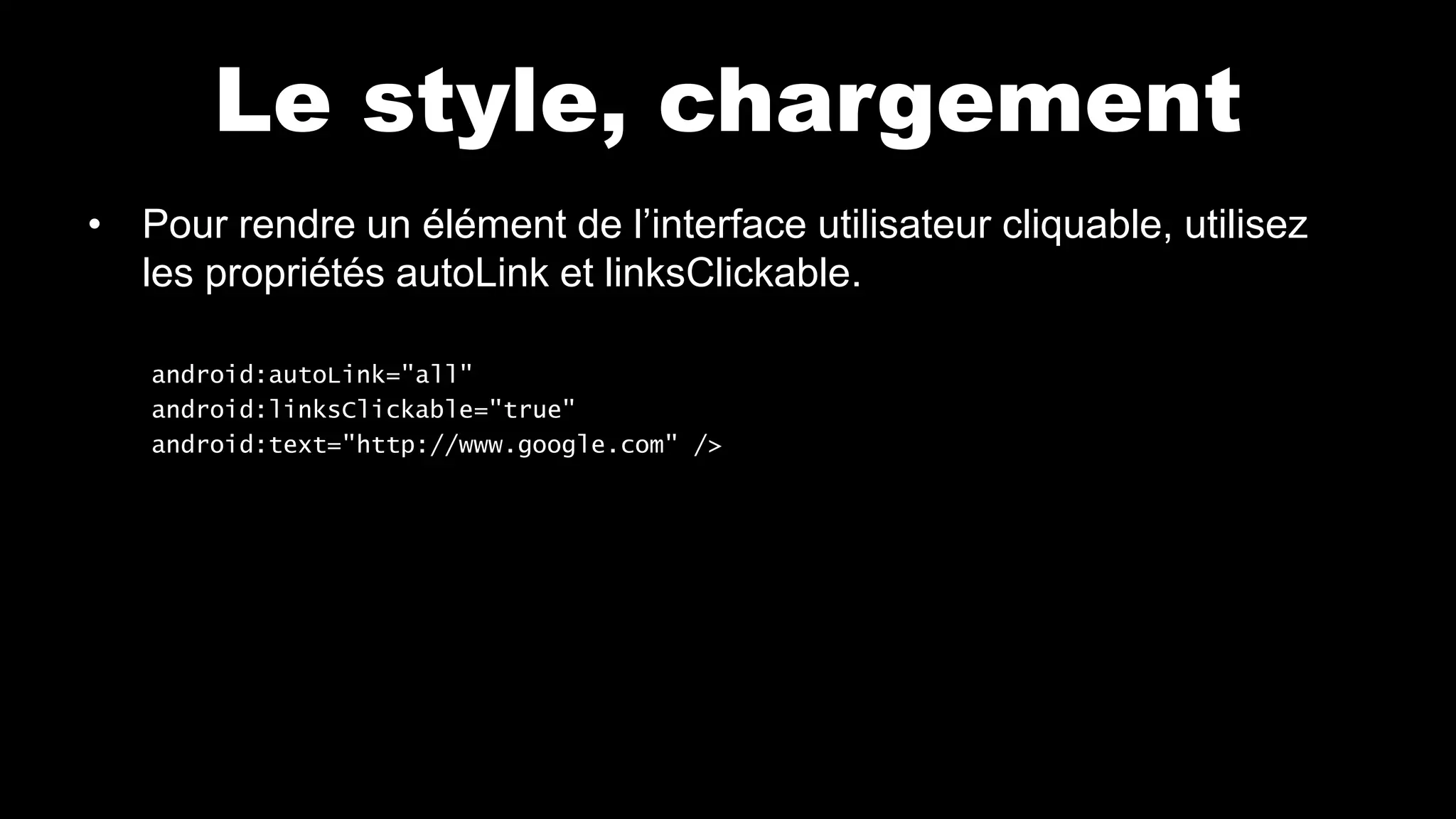
• Pour rendre un élément de l’interface utilisateur cliquable, utilisez
les propriétés autoLink et linksClickable.
android:autoLink="all"
android:linksClickable="true"
android:text="http://www.google.com" />
Le style, chargement
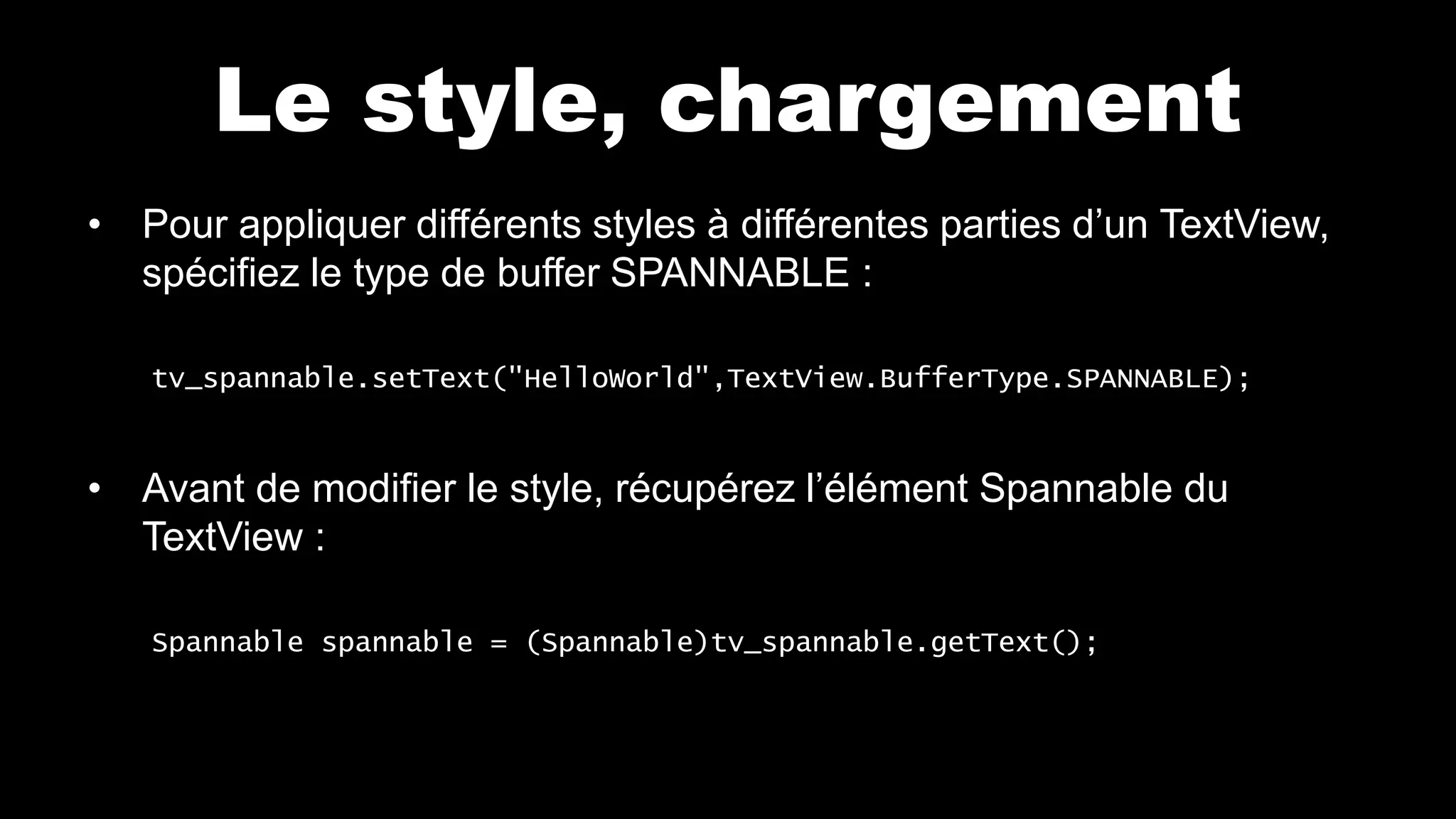
• Pour appliquer différents styles à différentes parties d’un TextView,
spécifiez le type de buffer SPANNABLE :
tv_spannable.setText("HelloWorld",TextView.BufferType.SPANNABLE);
• Avant de modifier le style, récupérez l’élément Spannable du
TextView :
Spannable spannable = (Spannable)tv_spannable.getText();
Le style, chargement
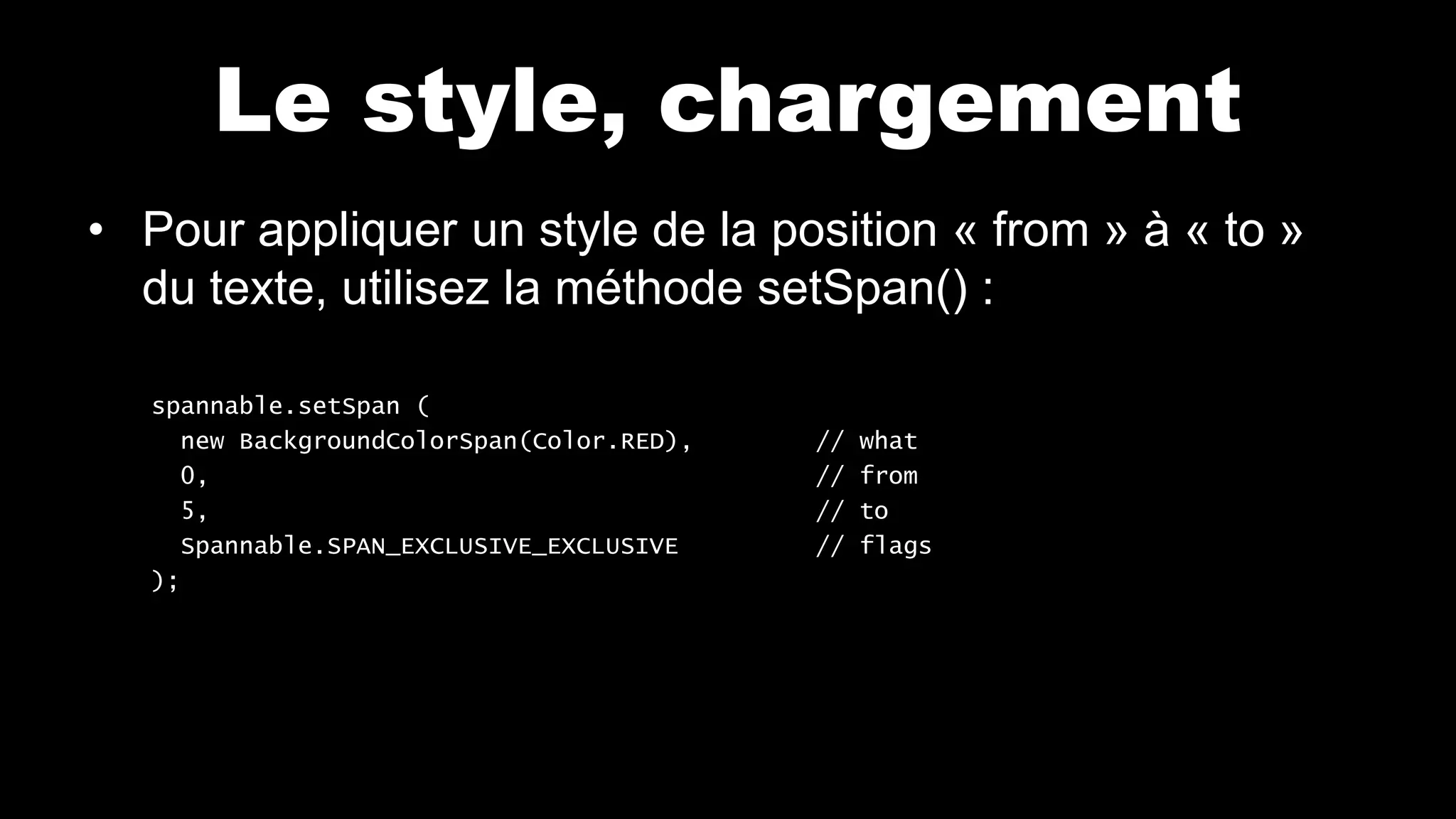
• Pour appliquer un style de la position « from » à « to »
du texte, utilisez la méthode setSpan() :
spannable.setSpan (
new BackgroundColorSpan(Color.RED), // what
0, // from
5, // to
Spannable.SPAN_EXCLUSIVE_EXCLUSIVE // flags
);
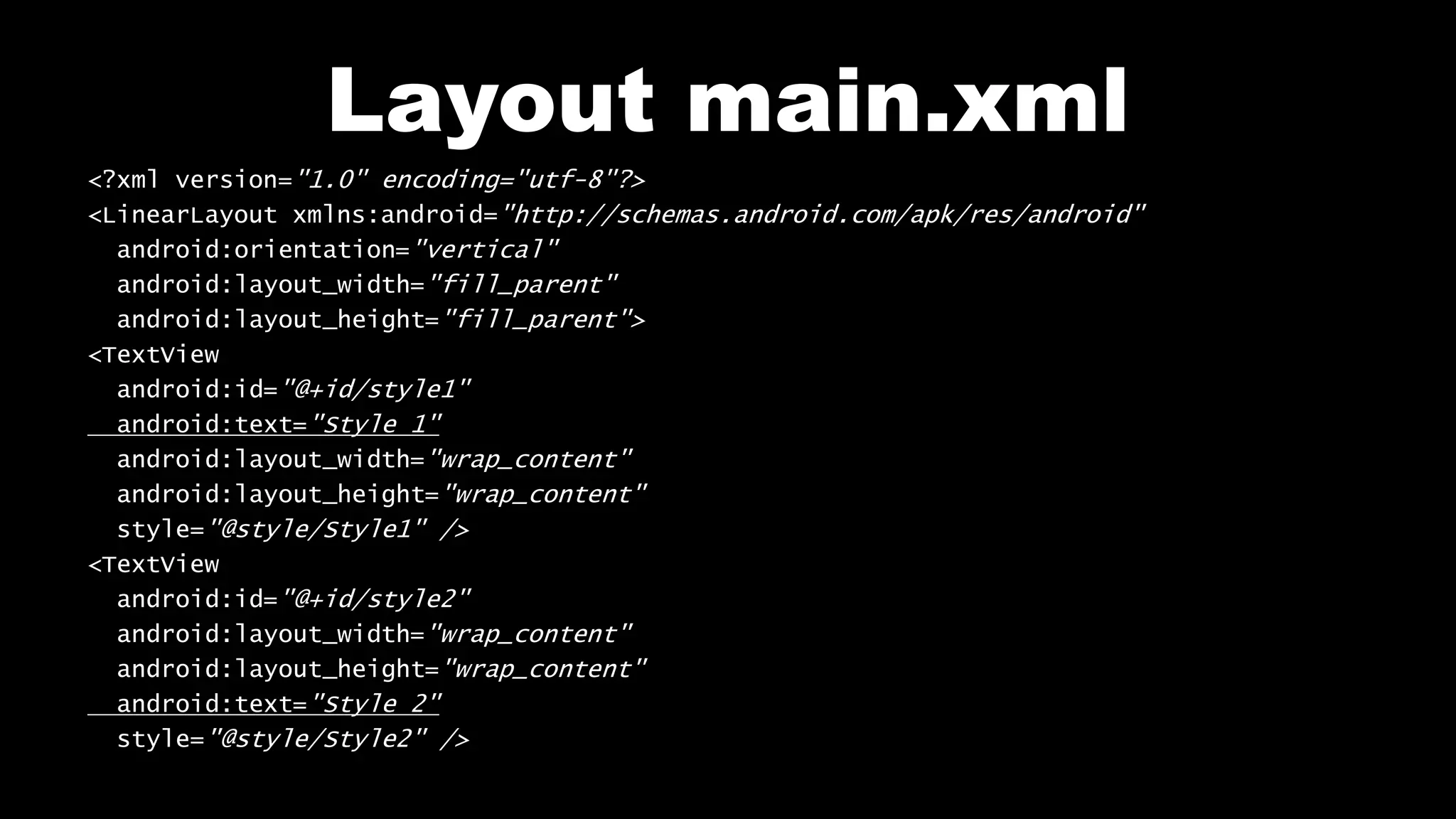
Layout main.xml
<?xml version="1.0" encoding="utf-8"?>
<LinearLayout xmlns:android="http://schemas.android.com/apk/res/android"
android:orientation="vertical"
android:layout_width="fill_parent"
android:layout_height="fill_parent">
<TextView
android:id="@+id/style1"
android:text="Style 1"
android:layout_width="wrap_content"
android:layout_height="wrap_content"
style="@style/Style1" />
<TextView
android:id="@+id/style2"
android:layout_width="wrap_content"
android:layout_height="wrap_content"
android:text="Style 2"
style="@style/Style2" />
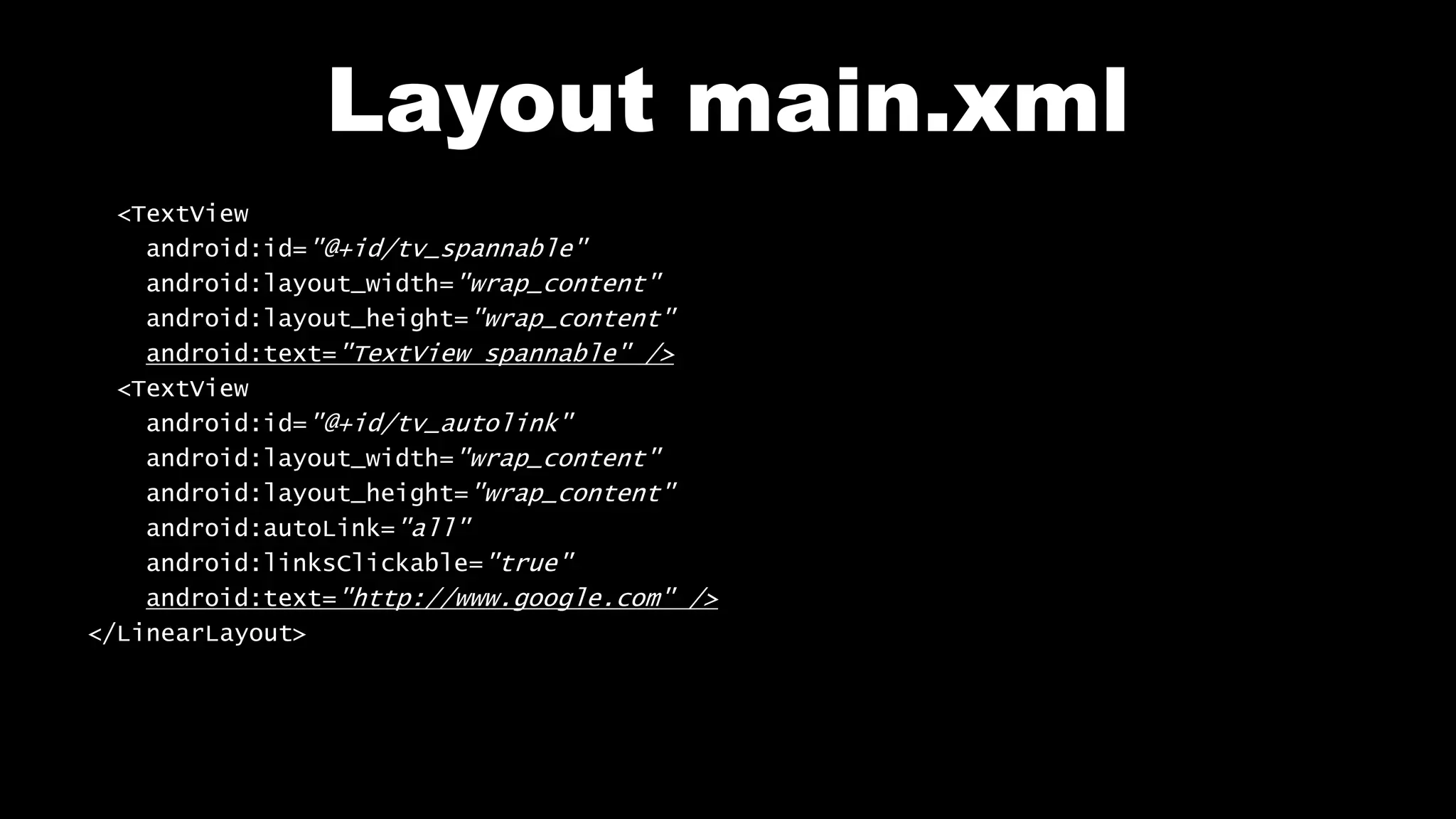
Layout main.xml
<TextView
android:id="@+id/tv_spannable"
android:layout_width="wrap_content"
android:layout_height="wrap_content"
android:text="TextView spannable" />
<TextView
android:id="@+id/tv_autolink"
android:layout_width="wrap_content"
android:layout_height="wrap_content"
android:autoLink="all"
android:linksClickable="true"
android:text="http://www.google.com" />
</LinearLayout>
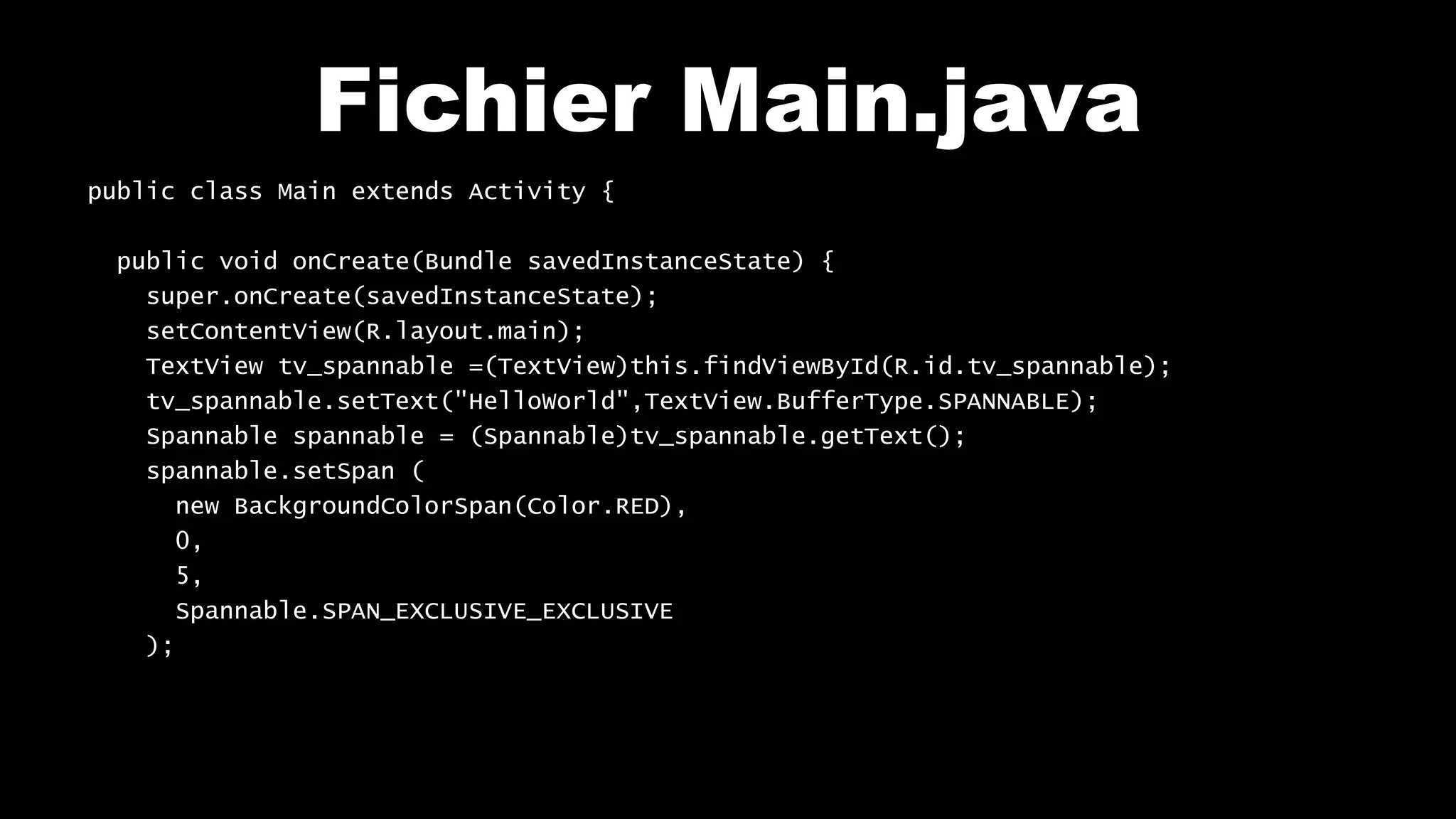
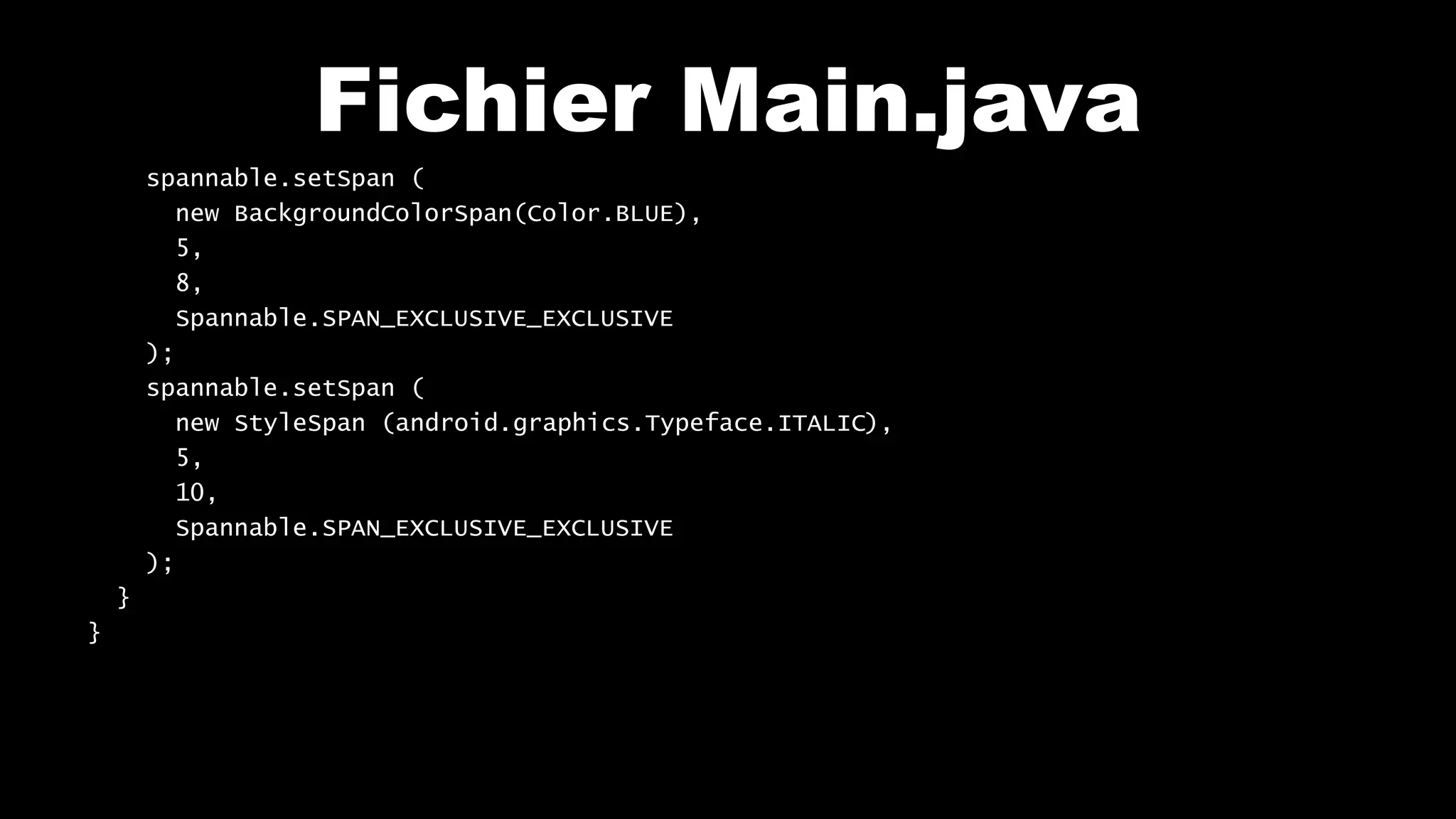
Fichier Main.java
public class Main extends Activity {
public void onCreate(Bundle savedInstanceState) {
super.onCreate(savedInstanceState);
setContentView(R.layout.main);
TextView tv_spannable =(TextView)this.findViewById(R.id.tv_spannable);
tv_spannable.setText("HelloWorld",TextView.BufferType.SPANNABLE);
Spannable spannable = (Spannable)tv_spannable.getText();
spannable.setSpan (
new BackgroundColorSpan(Color.RED),
0,
5,
Spannable.SPAN_EXCLUSIVE_EXCLUSIVE
);
Fichier Main.java
spannable.setSpan (
new BackgroundColorSpan(Color.BLUE),
5,
8,
Spannable.SPAN_EXCLUSIVE_EXCLUSIVE
);
spannable.setSpan (
new StyleSpan (android.graphics.Typeface.ITALIC),
5,
10,
Spannable.SPAN_EXCLUSIVE_EXCLUSIVE
);
}
}
Testez sur votre mobile
View_Style
Retrouvez-moi sur ma chaîne AndroidLabTest …
Sur ma chaîne Youtube
https://www.youtube.com/user/mobiledevlabtest
Qui suis-je ?
Bruno Delb,
auteur du 1er livre francophone de développement d’application Java sur mobile (2002),
développeur d’applications mobiles & sociales,
parlez-moi de vos projets.
Et bien sûr sur mon site Web :
http://blog.brunodelb.com

Android Lab Test : Le style des vues (français)

  • 1.
    Développer sur Android AndroidLab Test www.AndroidLabTest.com Facebook Par Bruno Delb www.youtube.com/androidlabtest www.twitter.com/brunodelb | www.facebook.com/brunodelb | blog.brunodelb.com www.facebook.com/Androidlabtest Youtube Siteofficiel Leçon : Le style, chargement
  • 2.
    Le style, chargement •Dans cette leçon, vous allez apprendre à appliquer plusieurs styles au texte d’un TextView. • Pour cela, vous allez utiliser le TextView et le Spannable.
  • 3.
    Le style, chargement •Pour rendre un élément de l’interface utilisateur cliquable, utilisez les propriétés autoLink et linksClickable. android:autoLink="all" android:linksClickable="true" android:text="http://www.google.com" />
  • 4.
    Le style, chargement •Pour appliquer différents styles à différentes parties d’un TextView, spécifiez le type de buffer SPANNABLE : tv_spannable.setText("HelloWorld",TextView.BufferType.SPANNABLE); • Avant de modifier le style, récupérez l’élément Spannable du TextView : Spannable spannable = (Spannable)tv_spannable.getText();
  • 5.
    Le style, chargement •Pour appliquer un style de la position « from » à « to » du texte, utilisez la méthode setSpan() : spannable.setSpan ( new BackgroundColorSpan(Color.RED), // what 0, // from 5, // to Spannable.SPAN_EXCLUSIVE_EXCLUSIVE // flags );
  • 6.
    Layout main.xml <?xml version="1.0"encoding="utf-8"?> <LinearLayout xmlns:android="http://schemas.android.com/apk/res/android" android:orientation="vertical" android:layout_width="fill_parent" android:layout_height="fill_parent"> <TextView android:id="@+id/style1" android:text="Style 1" android:layout_width="wrap_content" android:layout_height="wrap_content" style="@style/Style1" /> <TextView android:id="@+id/style2" android:layout_width="wrap_content" android:layout_height="wrap_content" android:text="Style 2" style="@style/Style2" />
  • 7.
    Layout main.xml <TextView android:id="@+id/tv_spannable" android:layout_width="wrap_content" android:layout_height="wrap_content" android:text="TextView spannable"/> <TextView android:id="@+id/tv_autolink" android:layout_width="wrap_content" android:layout_height="wrap_content" android:autoLink="all" android:linksClickable="true" android:text="http://www.google.com" /> </LinearLayout>
  • 8.
    Fichier Main.java public classMain extends Activity { public void onCreate(Bundle savedInstanceState) { super.onCreate(savedInstanceState); setContentView(R.layout.main); TextView tv_spannable =(TextView)this.findViewById(R.id.tv_spannable); tv_spannable.setText("HelloWorld",TextView.BufferType.SPANNABLE); Spannable spannable = (Spannable)tv_spannable.getText(); spannable.setSpan ( new BackgroundColorSpan(Color.RED), 0, 5, Spannable.SPAN_EXCLUSIVE_EXCLUSIVE );
  • 9.
    Fichier Main.java spannable.setSpan ( newBackgroundColorSpan(Color.BLUE), 5, 8, Spannable.SPAN_EXCLUSIVE_EXCLUSIVE ); spannable.setSpan ( new StyleSpan (android.graphics.Typeface.ITALIC), 5, 10, Spannable.SPAN_EXCLUSIVE_EXCLUSIVE ); } }
  • 10.
    Testez sur votremobile View_Style
  • 11.
    Retrouvez-moi sur machaîne AndroidLabTest … Sur ma chaîne Youtube https://www.youtube.com/user/mobiledevlabtest Qui suis-je ? Bruno Delb, auteur du 1er livre francophone de développement d’application Java sur mobile (2002), développeur d’applications mobiles & sociales, parlez-moi de vos projets. Et bien sûr sur mon site Web : http://blog.brunodelb.com