Installation et configuration de  PrestaShop _________________ Installation and configuration of  PrestaShop
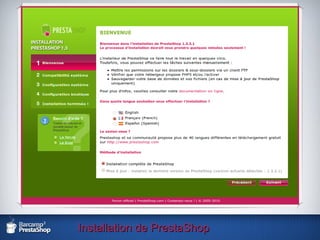
Installation de PrestaShop Rendez-vous à l‘URL : – Go to this URL: http://www.ma_boutique.com/install  ou  http://localhost/PrestaShop/install
Installation de PrestaShop
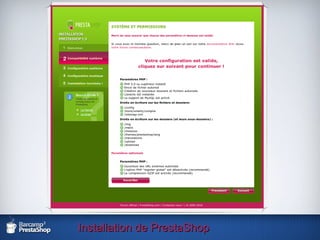
Cliquez sur suivant pour vous rendre à l'étape 2 – Click on next to go to the step 2 L'installer vérifiera la configuration de votre serveur. – Installer is going to check your server configuration . Installation de PrestaShop
Installation de PrestaShop
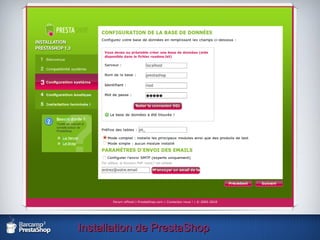
Installation de PrestaShop Cliquez sur suivant pour vous rendre sur l'étape 3 – Click on next to go to the step 3 L'installer vous demandera d'indiquer les informations relatives à votre base de données. – Installer will ask for informations about your database.
Installation de PrestaShop
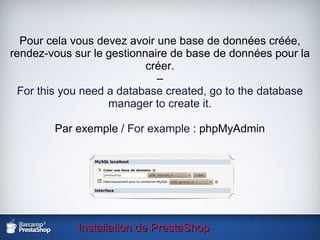
Installation de PrestaShop Pour cela vous devez avoir une base de données créée, rendez-vous sur le gestionnaire de base de données pour la créer. – For this you need a database created, go to the database manager to create it. Par exemple /  For example  : phpMyAdmin
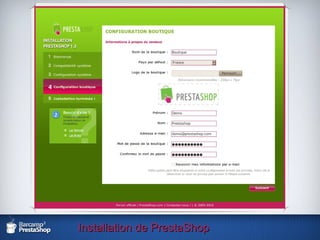
Installation de PrestaShop Une fois vos informations renseignées, rendez-vous sur  l'étape 4. – Once your information filled in, go to step 4. Cette étape permet de renseigner des paramètres pour  votre boutique. – At this step, you can specify parameters for your shop.
Installation de PrestaShop
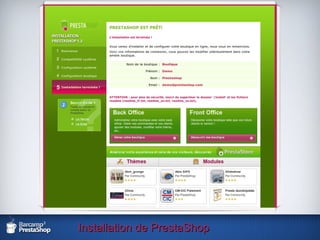
Installation de PrestaShop Rendez-vous à la dernière étape qui vous permettra de finaliser l'installation de votre boutique. – Go to the last step to complete the installation of your store .
Installation de PrestaShop
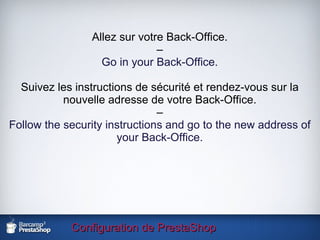
Configuration de PrestaShop Allez sur votre Back-Office. – Go in your Back-Office. Suivez les instructions de sécurité et rendez-vous sur la nouvelle adresse de votre Back-Office. – Follow the security instructions and go to the new address of your Back-Office.
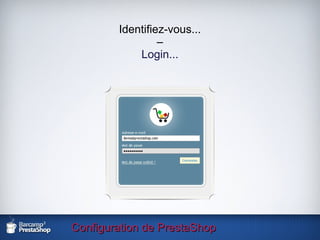
Configuration de PrestaShop Identifiez-vous... – Login...
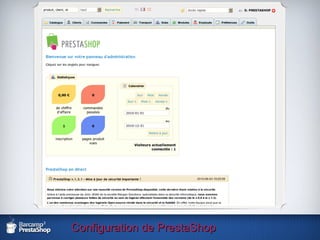
Configuration de PrestaShop Vue d'ensemble de votre Back-Office. – Global view of your Back-Office.
Configuration de PrestaShop
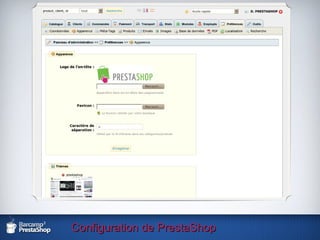
Configuration de PrestaShop Configurons votre boutique :-) – Configure your shop :-) Nous allons tout d'abord changer le logo. – We are going to change the logo. Cliquez sur l'onglet Préférences puis Apparence. – Click Preferences, then Appearance tab.
Configuration de PrestaShop
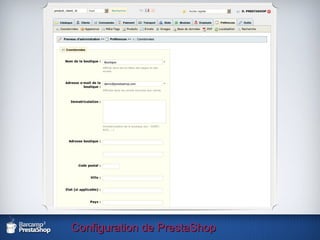
Configuration de PrestaShop Nous allons indiquer les coordonnées de votre boutique. – We will provide contact information for your shop . Pour cela, cliquez sur le sous-onglet Coordonnées. – To do this, click the Contact subtab.
Configuration de PrestaShop
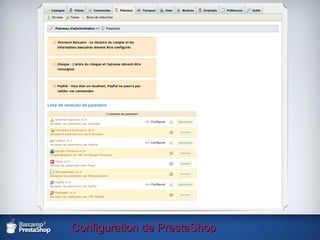
Configuration de PrestaShop Pour configurer vos modules de paiement, cliquez sur l'onglet Paiement. – To configure your payment modules, click the Payment tab.
Configuration de PrestaShop
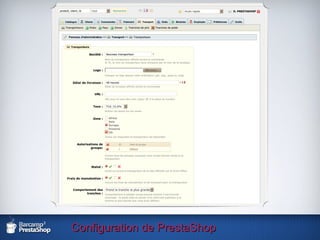
Configuration de PrestaShop Nous allons créer un transporteur. – We are going to create a new carrier. Rendez-vous sur la page Transport et cliquez sur le sous-onglet Transporteurs. – Visit the Shipping page and click on the subtab Carriers.
Configuration de PrestaShop
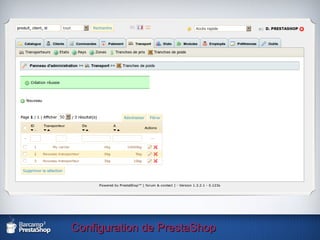
Configuration de PrestaShop Une fois le transporteur créé, cliquez sur le sous-onglet Tranches de poids et créez autant de tranches que nécessaire. – Once the carrier set, click the Weight ranges subtab and create as many ranges as needed.
Configuration de PrestaShop
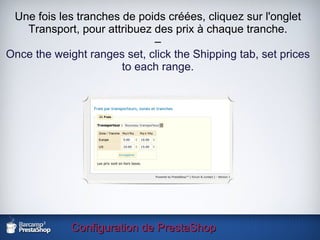
Configuration de PrestaShop Une fois les tranches de poids créées, cliquez sur l'onglet Transport, pour attribuez des prix à chaque tranche. – Once the weight ranges set, click the Shipping tab, set prices to each range.
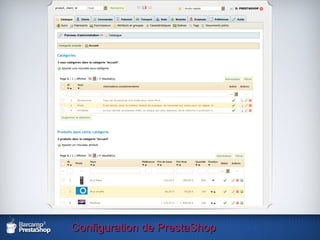
Configuration de PrestaShop Maintenant, nous allons créer une catégorie de produits. Pour cela, cliquez sur l'onglet Catalogue. – Now, we are going to create a new product category. For this, click on Catalog tab.
Configuration de PrestaShop
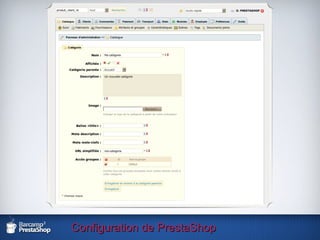
Configuration de PrestaShop Cliquez sur « Ajouter une nouvelle sous-catégorie » – Click on « Add a new subcategory »
Configuration de PrestaShop
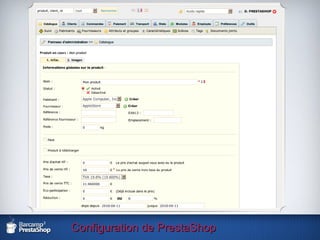
Configuration de PrestaShop Cliquez sur « ajouter un produit » – Click on « Add a new product »
Configuration de PrestaShop
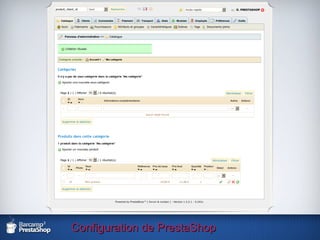
Configuration de PrestaShop Votre nouveau produit est créé... – Your new product has been created...
Configuration de PrestaShop
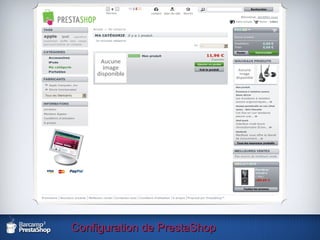
Configuration de PrestaShop Sur le Front-Office, vous pouvez maintenant voir dans la catégorie « Ma catégorie », l'article que vous venez de créer. – In the Front-Office, you can now see in the category "My Category", the article you just created.
Configuration de PrestaShop
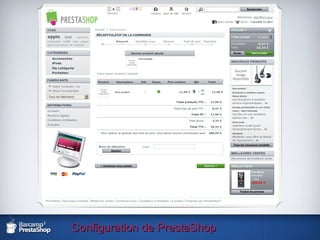
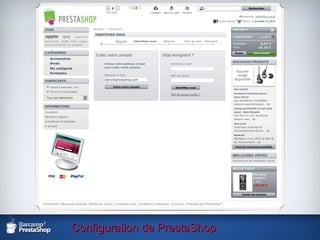
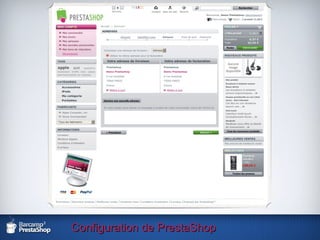
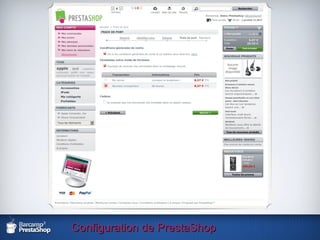
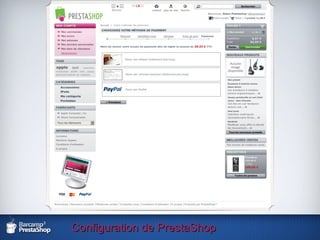
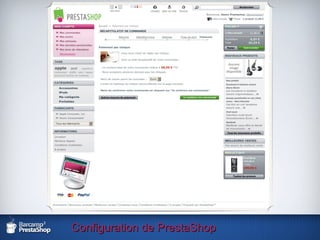
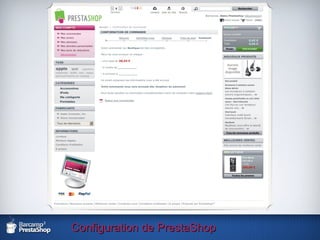
Configuration de PrestaShop Passons une commande... Une fois le produit ajouté au panier, le processus de commande est composé de 5 étapes : Récapitulatif panier Identification et choix de l'adresse Choix du transporteur Choix du moyen de paiement Confirmation
Configuration de PrestaShop Create a new order... Once the product is added to the cart, the checkout process is composed of 5 steps: Cart Summary Identification and selection of the address Carrier choice Payment choice Confirmation
Configuration de PrestaShop
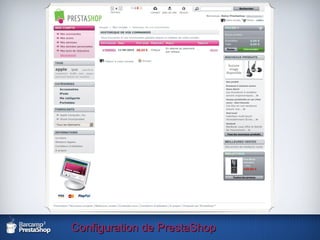
Configuration de PrestaShop Vous pouvez voir dans l'historique de vos commandes, celle que vous venez de passer. – You can see in the history of your orders, the one you just passed.
Configuration de PrestaShop
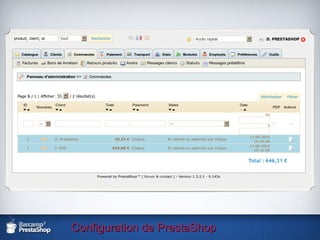
Configuration de PrestaShop Nous retournons dans le Back-Office, pour valider notre commande. Cliquez sur l'onglet « Commandes ». -- We get back in the Back-Office, to confirm our order. Click on the "Orders" tab.
Configuration de PrestaShop
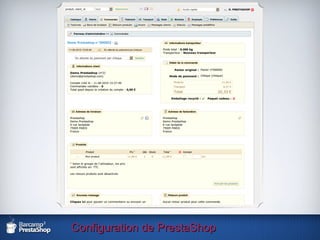
Configuration de PrestaShop Cliquez sur votre commande pour en voir le détail et en changer le statut. – Click on your order to see details and change its status.
Configuration de PrestaShop
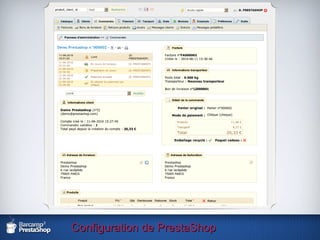
Configuration de PrestaShop Sélectionnez le nouveau statut et cliquez sur « Modifier ». – Select the new status and click on « Change ».
Configuration de PrestaShop
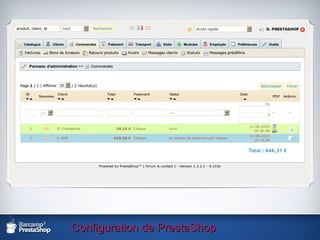
Configuration de PrestaShop La nouvelle commande est validée, nous pouvons la voir dans la liste des commandes en « vert ». – The new order is confirmed, we can see in the list of orders in « green ».
Configuration de PrestaShop
Configuration de PrestaShop Si vous avez des questions, n'hésitez pas à venir  participer à notre atelier... :-) – If you have any questions, feel free to come and  participate in our workshop ... :-)

Installation & Configuration - PrestaShop